Saturday, July 19, 2014

Eject CD script

As part of our setup, we have to deploy some iMacs and MacMinis all of them do not have PXE. Moreover, we prefer a manually controlled deployment method and do not want to use required deployment.

My colleague has designed a CD that loads WinPE. However, the CD needs to be ejected ASAP. here is the small script to do it in CMD:
"Eject CD\eject.exe"

It uses an eject.exe that is part of a small package of scripts that we have created for all our TS needs. If I remember correctly, this exe can be copied from MDT deployment share Scripts folder.

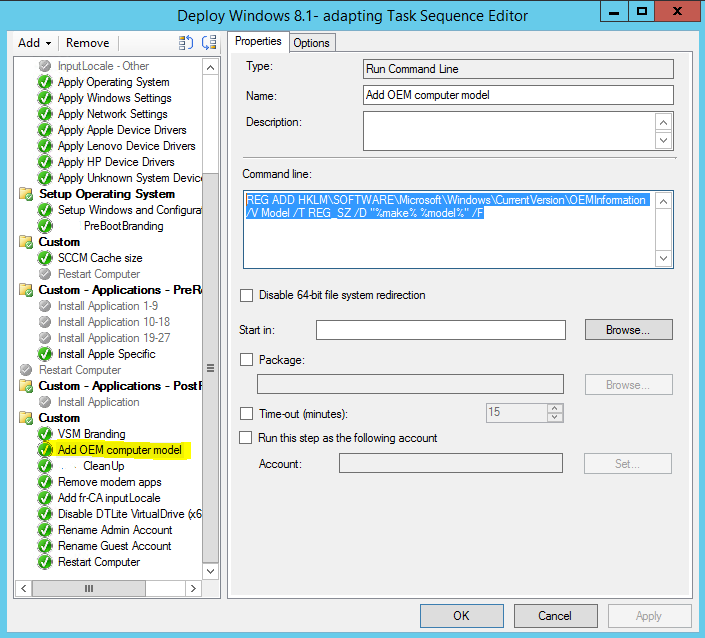
In the TS, it looks like this:


Dynamic OEM Computer Model

One of the nice touches of proper and detailed TS config is the appropriate use of OEM information. In fact, it is sometimes useful to have OEM models setup according to the hardware specs.

The script is really simple:
REG ADD HKLM\SOFTWARE\Microsoft\Windows\CurrentVersion\OEMInformation /V Model /T REG_SZ /D "%make% %model%" /F


It leverages two custom variables %make% and %model% defined in the appropriate collection. For example, Apple collection is created with a query
select SMS_R_SYSTEM.ResourceID,SMS_R_SYSTEM.ResourceType,SMS_R_SYSTEM.Name,SMS_R_SYSTEM.SMSUniqueIdentifier,SMS_R_SYSTEM.ResourceDomainORWorkgroup,SMS_R_SYSTEM.Client from SMS_R_System inner join SMS_G_System_COMPUTER_SYSTEM on SMS_G_System_COMPUTER_SYSTEM.ResourceId = SMS_R_System.ResourceId where SMS_G_System_COMPUTER_SYSTEM.Manufacturer = "Apple Inc."
and has a variable make=Apple

While collection MacMini 5.1 is using a query
select SMS_R_SYSTEM.ResourceID,SMS_R_SYSTEM.ResourceType,SMS_R_SYSTEM.Name,SMS_R_SYSTEM.SMSUniqueIdentifier,SMS_R_SYSTEM.ResourceDomainORWorkgroup,SMS_R_SYSTEM.Client from SMS_R_System inner join SMS_G_System_COMPUTER_SYSTEM on SMS_G_System_COMPUTER_SYSTEM.ResourceID = SMS_R_System.ResourceId where SMS_G_System_COMPUTER_SYSTEM.Model = "Macmini5,1"
and has a variable model=MacMini 5,1 (Mid 2011)

The combination of both variables (during deployment to the above mentioned model and make) gives a final script for this model:
REG ADD HKLM\SOFTWARE\Microsoft\Windows\CurrentVersion\OEMInformation /V Model /T REG_SZ /D "Apple MacMini 5,1 (Mid 2011)" /F

Of course all this work for make and model in OEM branding do not make sense. We are using them extensively throughout the TS: in HDD formatting, driver injection and many more other places.

Unstable Aerohive behavior

Recently I had some issues with the entire hive: the APs where restarting randomly and the users were unable to register. immediate hot fix was to restart the units but it was good only for a few days or a week max.

First, diagnostics: the issue we had is completely silent and hidden. No error messages or any other problems show in the logs both on the APs and in the manager. The only warning sign is frequent random restarts of APs: roughly every 3-4 days a few units will restart. Eventually, users that try to authenticate will be refused connection and those who are already authenticated will remain connected.

While working with Aerohive, we found out that it could be due to WIPS (). It is possible that WIPS will force some sort of kernel panic effectively inducing a unit restart. By disabling WIPS, we have extended the restart time and the interval between authentication problems. However the issue was not fixed completely: once a week or a bit more we had to restart everything again.

The solution? We haven't found one. Luckily, a new version came out (6.1r6a). At the moment, it looks like a full upgrade has fixed the issues: no restarts or connection issues for the past week.

Thursday, October 17, 2013

FSSO with Device based policies

While surfing on the web, I have stumbled upon a series of posts discussing FSSO implementation strategies (agent, pooling mode etc.) and the ways they affects computers used by IT personnel. A most common complaint describes a situation when a particular station may change authentication groups (in FSSO) because IT admins have used it to remotely access another AD bound device under different credentials.Simply put, working from a single station sitting behind a Fortigate unit with multiple RDP sessions active is a real pain for IT personnel.

Surely, multiple solutions exist. However, I would like to share a combined approach that allows to effectively distinguish between IT personnel only stations and user accessible devices. At the same time, the proposed approach ensures that devices not bound to domain but using the same corporate network may still be allowed and classified based on device type.

We will need:

Custom defined devices

1) In the User&Device --> Device Definition, click on Create New (on top of the list)

Notice that you may add multiple MAC addresses per device - a useful feature for VM machines that will share the same type of network access
OR
2) Search for devices in the list of detected devices.
Note that if you want to detect and classify devices you should make sure that it is enabled on appropriate interface. Go to Network-->Interfaces--> Select appropriate interface and check for the option "Device Management."

Device Groups

We need to group our devices in one or many groups according to their permissions and other related info.
In User-->Device-->Device Groups, click on Create New (top left corner of the list). Name the group and add the devices that it should include.


Now, we are ready to modify firewall policies. Our goal is to make sure that the group we have created gets authentication before FSSO based on their MAC address and not on their FSSO associated credentials.

Firewall rules

Custom device group policy

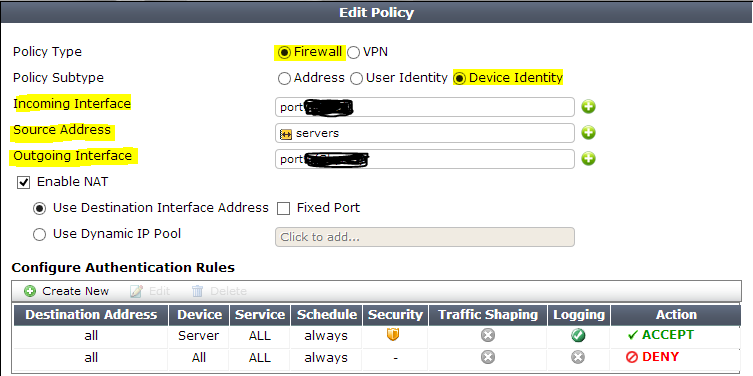
Assuming that we have a set of servers that use WSUS and many other services accessing network that also act as ADs, we need to ensure that will not get blocked or capped. We need a new policy with the following configs:

  • Policy type: Firewall
  • Policy subtype: Device Identity
  • Incoming Interface: port on Fortigate unit used by our servers
  • Source address: servers or all or anything you usually use
  • Device: Server- the device group name associated with our server (see authentication rules)
  • etc. - all other configs as usual for internet access

Once the config is complete, make sure that the policy we have created is placed on the list before other policies that have the same combination of Incoming/Outgoing interfaces.

For example, we need to make sure that all users(system) directly logged onto our servers are not passing through FSSO when communication from port 7 to port 9.
In this example, our servers policy is first. FSSO policy is the second one. Third one is a generic per device type policy created to capture all devices that are not AD bound or authenticated otherwise.

Generic device policy

As we have stated earlier this third policy is something that we are actively using to create custom traffic shaping and filtering rules for guest devices. The idea is simple: we do not want 
  • iThings to use our network to get updates, 
  • all types of full-blown OSes to use torrents(it is not an issue on tablets etc.) or get updates,
  • we will monitor botnet behavior and limit certain websites only for some device types
  • etc.
In short we are looking to customize, per device, our rules. To make sure that all non FSSO users get to the third policy, we need to enable a "Skip this policy for unauthenticated user" feature in the second FSSO policy:

Now we can add a generic device policy:

Conclusion

We now have three policies:
  1. Used for our internal admin devices
  2. Used for FSSO AD authenticated users
  3. Used for any other device that was not captured by the first two policies

Disadvantages

This method uses MAC address association. A malicious device that has spoofed a MAC address can pose as a server and will get the same rights. However, I hope that many other fail-safe tools exist on your network preventing impersonation.

Finally, if you have more ideas or have implemented it differently, please share!

Sunday, October 13, 2013

Adding OS definitions to Aerohive

In the default config, Aerohive has many OS objects. However, you will find that many are missing. In my install, I have found that all Blackberry devices were identified as Linux/unknown.

Fingerprints

First, we need to get the list of DHCP fingerprints:

In this file, we will find the blocks of the info we need to add to our OS object list.

OS objects

OS objects can be found in Configuration --> Advanced configuration --> Common objects --> OS objects. A full config can be exported in the form of a text file. In fact, I strongly suggest to have a look at the way it is formatted before adding or modifying anything. Once you are familiar with the format and ready to add a new definition, you can use Import function to do so.

In our case, we would like to add Blackberry to the list. In the online dhcp_fingerprints.conf, we find the following:
[os 1101]
description=RIM BlackBerry
fingerprints=<
56,6,1,3,15
1,3,6,15
EOT

We format it according to the format found in Aerohive:
OS=Blackberry
1,3,6,15
56,6,1,3,15
END

Now we can simply create a text file and import it into our config. Note however that there maybe conflicts in object definitions! When searching for Blackberry keyword in the dhcp_fingerprints.conf  you will find the following:
# 1,3,6,15 : 3 CONFLICTS with BlackBerry
[os 404]
description=OEMed Wireless Router
fingerprints=<
EOT

Of course this conflict will never appear unless we have such a device on the network and in our OS objects list. This could explain why Aerohive adds only most common objects in the default config.

Saturday, August 3, 2013

Fortigate - widget malfunction - multiple bugs

If you have tried to reconfigure/modify, add or move a widget and noticed that your action was not completed:
CFG_CLI_INTERNAL_ERR

Fortigate has confirmed that it is a bug in UI and in CLI. There are multiple bug reports associated with this case and it should be fixed in the next release.

Versions affected by these bugs: v5.0 patch release 2 and carried over to 3.
Fix expected: v5.0 patch release 4 which is still pending official release at this time

UPDATE from 19-08-2013: For me, it is confirmed that the bug was not fixed in the v5.0 patch release 4. Moreover, I see a clear slowdown in the authentication of Fortigate after applying the patch: the first call seems slower than before. While this patch fixes many bugs, more testing is needed.

UPDATE from 27-08-2013: The support insists that there are two widget types: "old" and "new" the old being available only through CLI. My experience differs: I have been able to reset to default all widgets and recreated the ones I need through GUI. I was able to successfully create and modify both "traffic history" and "interface history" types.
I have requested additional research on the topic but for now it looks like the support is a big disappointment. Is it just me or everyone feels that Fortinet support is not as good as it used to be? Often, they do not have the latest information, are not trained and have no idea on how to help you...

UPDATE from 28-08-2013: The support has totally ignored the fact that GUI worked as expected after a reset.  However, they did confirm that the widget named "traffic history" is the one that may be removed in the future patches as it is considered CPU intensive and was made available only because many customers have requested it.

Tuesday, May 28, 2013

Fortigate user monitor - Fixed bug #0193766

BUG: 0193766 (FSSO Auth users are not showing up in GUI).

According to Fortinet support, the issue with authenticated users not showing in the User Monitor will be fixed in the version 5.0.3.

UPDATE 03-08-2013: It was kind of fixed...
  • now we have to tick an option to see the list;
  • you cannot anymore deauth a user or all of them (if all users are FSSO type);
  • you cannot see the policy(ies) used by FSSO user, but you can filter based on these policies ???