Tuesday, May 28, 2013

Fortigate user monitor - Fixed bug #0193766

BUG: 0193766 (FSSO Auth users are not showing up in GUI).

According to Fortinet support, the issue with authenticated users not showing in the User Monitor will be fixed in the version 5.0.3.

UPDATE 03-08-2013: It was kind of fixed...
  • now we have to tick an option to see the list;
  • you cannot anymore deauth a user or all of them (if all users are FSSO type);
  • you cannot see the policy(ies) used by FSSO user, but you can filter based on these policies ???

Wednesday, March 13, 2013

Fortinet - Device Identity and Custom groups

Following documents from Fortinet, FortiOS 5 supports policies based on device groups.
Following support documents may be useful:
http://docs.fortinet.com/fos50hlp/50/index.html#page/FortiOS%25205.0%2520Handbook/Devices.067.02.html#ww1835612
http://docs.fortinet.com/fos50hlp/50/index.html#page/FortiOS%205.0%20Handbook/policies.031.11.html

I have already blogged about my partial solution that employs some sort of the support for device based firewall rules. However, I have recently found that in Fortigate we can define our personal permanent groups.  That is, we can create a group called Servers that regroups different types of machines that will not be purged or cleaned automatically.
Note: At the moment, I do not know how much time it takes but I'm sure that the device list is automatically purged by Fortigate unit on a regular basis.
Custom device group functionality may be particularly useful in scenarios where some mix of clients and servers connect on the same port through Fortigate unit to internet or to some other internal service. In this scenario, we would like to make sure that our servers, VMs etc. are properly classified and allowed the access they are supposed to get not based on the devie type but rather on services they provide.

For example, one of my machines is a VM hosting all sorts of servers with different responsibilities (proprietary update services, print services, windows updates, rdp etc.). For this MAC address, I want all outgoing traffic to be allowed. Moreover, there are 4 MAC's associated with this machine: I want them all grouped under the same name. All this and some more can be achieved by using device groups.

In order to set a custom device group and regroup our special devices, we have to do the following:

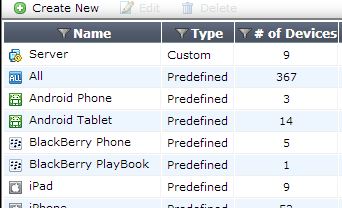
  • User&Device --> Device --> Device Group  create a new group, let us call it Server. This group will be used to create a special rule for our servers.


  • User&Device --> Device --> Device Definition assuming that your server has already tried to access internet(for updates or other) it will be in the list. Find it and modify the entry by assigning it to a custom group. You could also use the same interface to associate multiple MAC`s belonging to the same machine. <


  • In Firewall rules you will be able now to use this group and assign special rules to this group.


Monday, March 4, 2013

Fortinet - client-less FSSO for AD

Following a relatively detailed reply from Fortinet support team it looks like a client-less FSSO needs the following:

  • AD credentials - to configure LDAP a user name/password set is needed with an ability to read from LDAP (a normal user should do). With Win Server 2003 there may be some anomalies with limited user accounts.
  • LDAP - should be configured for each DC, the same credentials will be used to do the pulling.
  • Pulling - by default pulling occurs every 10 seconds, but may be configured for an interval from 1 to 30 sec. Also, ports 8000 and 445 need to be open.
According to support, the behavior is a bit different from classic config. Assuming that the interval is 10sec and a user has logged in just after pulling has occurred. If we assume that in the next 9 seconds the system or the user tries to access Internet, the IP will be classified as guest. Once the pulling passed the IP will be reclassified according to the logs in the DC.

Fortinet considers that client-less method is better for 1-3 DC's but they still think that a collector agent is the best choice for a config with more than 3 DC's.

Saturday, March 2, 2013

Firewall Guru: Enhanced Single Sign-On to Windows AD in FortiOS 5...

Sebastian reports that:
Firewall Guru: Enhanced Single Sign-On to Windows AD in FortiOS 5...: FortiOS 5.0 brings with it an enhancement to how single sign-on can be performed in a Microsoft Active Directory environment. In prior ver...

While I have seen the same info in the official guide, I'm not sure that this does work properly. I will try to see with Fortinet support team how this is different from collector agent.

UPDATE: I got a reply from Fortigate see my next post in the blog

3. Partial solution

Given our setup and limitations we have discussed previously, we have decided to use a neat feature available in Aerohive and separate the traffic at the entry point.

Aerohive setup


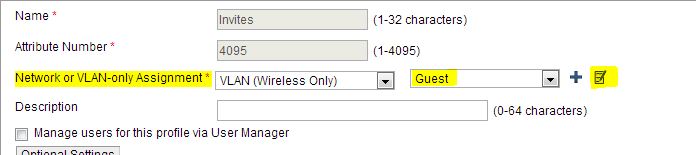
In Aerohive, we have configured a VLAN per user profile that we want to reroute. To do this, we have set a vlan for each user profile connecting to our wireless: Configuration --> Policy Configuration --> User Profiles.

Once the VLAN is assigned on Aerohive, it needs to be properly forwarded and redirected through all the switches all the way up to Fortigate unit. All traffic from this VLAN will end on Fortigate at a separate port from internal traffic effectively isolating these users from the rest of the network.

This means that Fortigate should be responsible for DHCP and DNS. But before we get there we need to make sure that Aerohive firewall allows this connection.


In Aerohive we need to allow access to our DNS/DHCP - GatewayGuest (The same as Fortigate IP on this VLAN- see the settings bellow). We also may need to allow access to some of our internal websites -DMZ.  We need to make sure that guest devices cannot communicate between them(hack each other etc.) - we therefore block all other internal IP access - 192.168.0.0/255.255.0.0 - Block. Finally we allow all other communication (last line in the picture above). Since the rules are processed from top to bottom this scenario works as we have intended.

Fortigate setup


As I have mentioned earlier, the traffic from this special VLAN will directly arrive at Fortigate unit and is completely isolated from the rest of the network. Thus we will use a built-in features in Fortigate in order to give this users access to DHCP/DNS and maybe to our DMZ.

Port set-up

First, let's look at port setup. Go to Network --> Interface --> PortXX (where XX is the port number that will receive all the traffic).
  
As we can note in the picture above, we need to setup: 
  • the name of the port - PORT_NAME,
  • a virtual domain that this port will belong to, if any
  • addressing mode should be manual (default) - because our unit will be serving DHCP it cannot get an IP from someone else,
    • IP/Mask should be in the same subnet as the ones in DHCP and it is the same as GatewayGuest set in Aerohive
  • the only Admin Access we allow is ping, but for hardened security even this can be deactivated,
  • DHCP server - enable
    • set the range and the mask for IP's that can be assigned to the clients
    • Default Gateway - same as interface unless you have a specific reason to set it up to something else
    • DNS Server - specify the same address as the IP set in Addressing mode - this will forward all DNS requests through Fortigate and will help us redirect internal traffic directly to DMZ
  • Enable device detection in Device Management - this will help us set policies per device type.
No we need to configure appropriate FireWall rules and DNS.

DNS

If the port we have configured above was assigned to a VDOM then inside VDOM look for System-->Network-->DNS Server.
First configure a DNS Database:

Back on the page of DNS configuration (System-->Network-->DNS Server), in the DNS Service on Interface create new DNS service as  Recursive. It is possible that Recursive option will not be available if you haven't set-up DNS Database. In this case, you will have the only available option Forward to System DNS.

FireWall


Now we need to configure our firewall rules. We will need to create at least two rules:

  1. A rule forwarding traffic from the port we setup above to the port connected to WLAN.
  2. If required, a rule forwarding traffic to DMZ.
The first rule, from our port to the WLAN should be set-up according to your internal config but the following image may help.
Since at this moment we know for sure that traffic coming for this rule is not identifiable and may never be, we can at least work with device types and provide some granular security. At the moment Fortinet offers following categories:
Similarly, if we decide to setup WebQuota categories for some or all devices, it will work per device IP address. While it is not the same as to have per user name quota it is better than having none at all.

Final thoughts: I may be adding more details to DNS setup but. for now. I hope that everyone struggling like me will have enough information to have the above described config setup on their devices.

Thursday, January 17, 2013

2.2 Networking series - Fortigate RSSO

Fortigate RSSO currently looks like a half backed system that was tailored for a a specific use case. It does not look like a new feature that was designed from ground up with users in mind.

To configure RSSO agent look here: http://docs.forticare.com/fos50hlp/50/index.html#page/FortiOS%205.0%20Help/RADIUS-SSO.063.05.html

To configure RSSO groups look here: http://docs.forticare.com/fos50hlp/50/index.html#page/FortiOS%25205.0%2520Help/RADIUS-SSO.063.08.html#ww1368148

An example of use: http://docs.forticare.com/fos50hlp/50/index.html#page/FortiOS%25205.0%2520Help/RADIUS-SSO.063.10.html#ww1369337

Currently, RSSO allows for following attributes:

rsso - enable/disable RADIUS based single sign on feature
rsso-radius-server-port
- UDP port to listen on for RADIUS accounting packets
rsso-radius-response
- enable/disable sending radius response packets
rsso-validate-request-secret
- enable/disable validating RADIUS request shared secret
rsso-secret
- RADIUS shared secret for responses / validating requests
rsso-endpoint-attribute
- RADIUS Attribute used to hold End Point name
rsso-endpoint-block-attribute
- RADIUS Attribute used to hold endpoint to block
sso-attribute
- RADIUS Attribute used to match the single sign on group value
sso-attribute-key
- key prefix for the single sign on group value in the 'sso-attribute'
rsso-context-timeout
- timeout value for RADIUS server database entries (0 = infinite)
rsso-log-period
- minimum time period to use for event logs
rsso-log-flags
- events to log
rsso-flush-ip-session
- enable/disable flush user IP sessions on RADIUS accounting stop

Following config should be used for our setup:
Enable in the interface port settings(Global-Network-Interface) the option to listen to accounting messages.  Then configure through CLI or a combination of Web Interface and CLI the following:

edit "RSSO_Agent"
set rsso enable

set rsso-radius-server-port 1813

set rsso-radius-response enable

set rsso-validate-request-secret enable

set rsso-secret ENC *****

set rsso-endpoint-attribute User-Name

set rsso-endpoint-block-attribute Called-Station-Id

set sso-attribute Vendor-Specific

set sso-attribute-key '6'

set rsso-context-timeout 28800

set rsso-log-period 0

set rsso-log-flags protocol-error profile-missing context-missing accounting-stop-missed accounting-event endpoint-block radiusd-other

set rsso-flush-ip-session disable

next


--- Set the shared secret between Radius server and Fortigate unit.

--- We need to classify the users based on their user names. Since we know that all our authentications come from a single AD service, a user that has two, three, four devices/sessions should have the same quota for all devices.
 
---- Remember that  our Aerohive units send Radius accounting packets to Fortigate. These packets contain Vendor specific attributes that contain group numbers.

However, we have been told by Fortigate support that two of them are there by mistake! That means that: sso-attribute-key and sso-attribute with value Vendor-Specific should not be available as options.This also means that Fortinet's implementation of Radius accounting parser is not feature complete and takes into account only basic attributes.

Moreover, the support states that:
  1. "RSSO uses only build in parameter set, and cannot be used in the same policy with FSSO users. You can use it with two different rules with FSSO if you don't use FSSOguest users" - this means that FSSO-Guest and RSSO are not compatible and FSSO and RSSO need to be separated in different policies. 
  2. "Web filter work for all users, but Quota work only for "authenticated" users. That's mean it will not work for RSSO users,until we will allow for RSSO users to be "authenticated" users in next releases, and will not work for BYOD non-authenticated users." - this means that users authenticated with RSSO are not authenticated at all! In fact, in the current release(FortiOS 5.0 Build 0128) RSSO seems to be totally useless functionality. What can it do?
UPDATE from 18 January 2013 taken from Fortinet support engineer message(as is) italics-original message, everything else - my comments:
"1. RSSO is nt really "authenticated" users, like FSSO or LDAP for now. This option allow you to assign specific IP's to corresponding groups. The only limitation between LDAP user and FSSO user is using quota.
Since it is not "authenticated", you cannot use it with FSSO users in the same policy. This is a new feature, and will be extended in next releases.
" - Now everything is clear! After three months of suffering we got it. It was never made to work as authentication method similar to FSSO, LDAP etc. It is simply a way for large providers to assign IPs based on Radius records. Why the documentation says nothing? Why your own engineers do not know nothing about it?
"2. The Vendor-Specific was added by mistake, and cannot work by design. For "Vendor-Specific" you need tree parameters:
a. Attribute - It's Vendor-Specific in our case.
b. VS Attribute - This is not exist in our firmware.
c. attribute key - Used for parsing Attribute parameter, if Radius send not "", but "Group=". In this case key will be "Group=".  This means that sso-attribute-key is simply a setting that strips the prefix string specified from the attribute value received by the unit. As the support says if the value is "Group=mobile" and the sso-attribute-key is "Group=", Fortigate will only store and register "mobile" as the value.
Since we cannot configure "VS Attribute", "Vendor-Specific" will never work. This option will be removed from our firmware.
" It took us three months and close to a 100 hours of testing with five L2 support engineers to get where we are now . Great customer support!

Update from 09 May 2013: VendorSpecific sso-attribute is still in the latest built (v5.0,build0179 (GA Patch 2)) but it does not work.
Update from 28 May 2013: Confirmed with Fortinet support - the VendorSpecific attribute will be removed and will not work (the only question is when).

2. Networking series - Fortigate

Last time we looked at Aerohive Radius accounting message. This time we will be considering how Fortigate works.

We have the latest patch of version 5 FortiOS (FortiOS 5.0 Build 0128). This means that we have features such as:
  • FSSO - Fortinet Single Sign On, is a feature that requires an agent/collector setup to be installed on every AD and DC in the netwrok in order to collect and forward user logins to Fortiage unit. It is not perfect and may miss, sometimes, a logout. However,  we never encountered a problem with a missed login.
  • RSSO - Radius Single Sign On, is a feature that requires all accounting packets to be sent to Fortigate unit. This setup allows the unit use external Radius authentication server in order to classify users.
  • FortiBar - A tool bar that appears on some user accessed webpages with additional information and actions. 
All of the above may be useful for our  project.